What a container actually is
Why containers
I use them to keep each project in its own box. If it runs in the box on my machine, it should run the same for anyone else.
Virtualization
Virtualization lets one physical machine act like many. Software called a hypervisor divides the CPU, RAM and disk among virtual machines, so the hardware stays busy instead of idling.
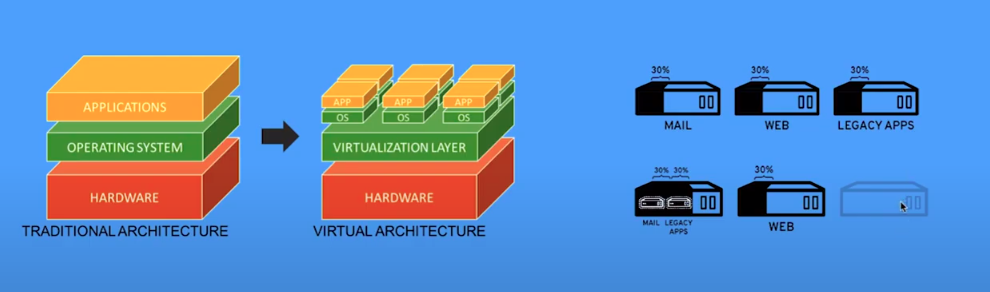
There are two kinds. A type 1 hypervisor runs straight on the hardware (KVM, ESXi). A type 2 hypervisor runs as a program on top of a normal OS (VirtualBox). Either way, every VM carries its own full guest OS.
Containers
A container skips the guest OS. It is a normal process on the host, kept apart from other processes by the kernel. All containers share the host kernel. Two kernel features do the work:
- Namespaces limit what a process can see: its own pids, mounts, network, hostname (uts), ipc and users. This is what gives the illusion of a private OS.
- Cgroups limit what it can use: CPU, memory, I/O.
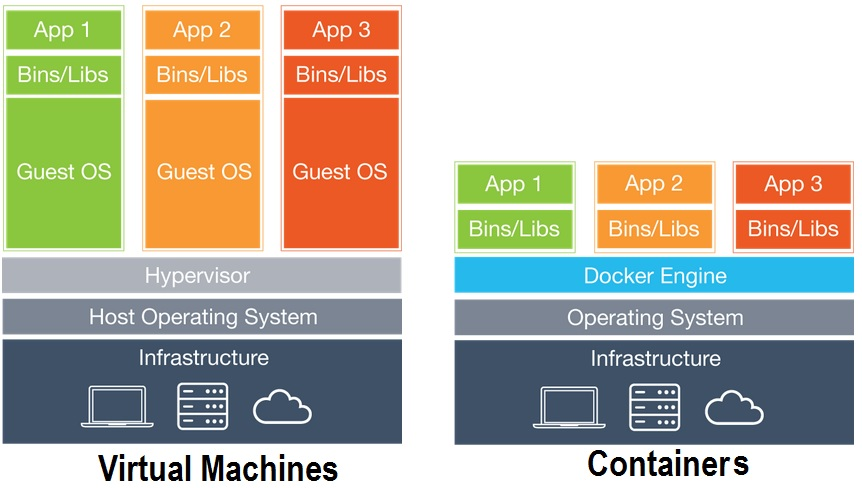
A container has no fixed slice of resources. By default it can use as much of the host as it likes, which is why the overhead is close to a plain process. You can cap it with --memory and --cpus.
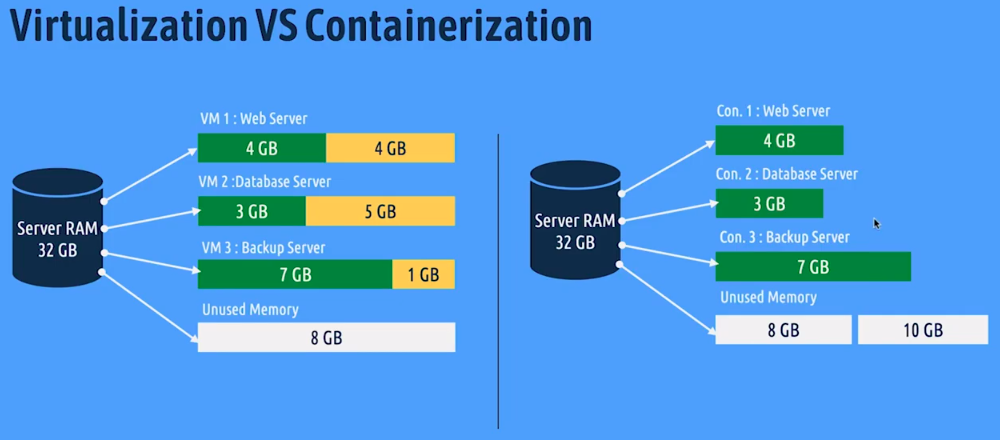
Since there is no OS to boot, a container usually starts in under a second. The image only holds the libraries and binaries the app needs, so it is small.
Docker
Docker is the engine most people use to build and run containers. A few terms first.
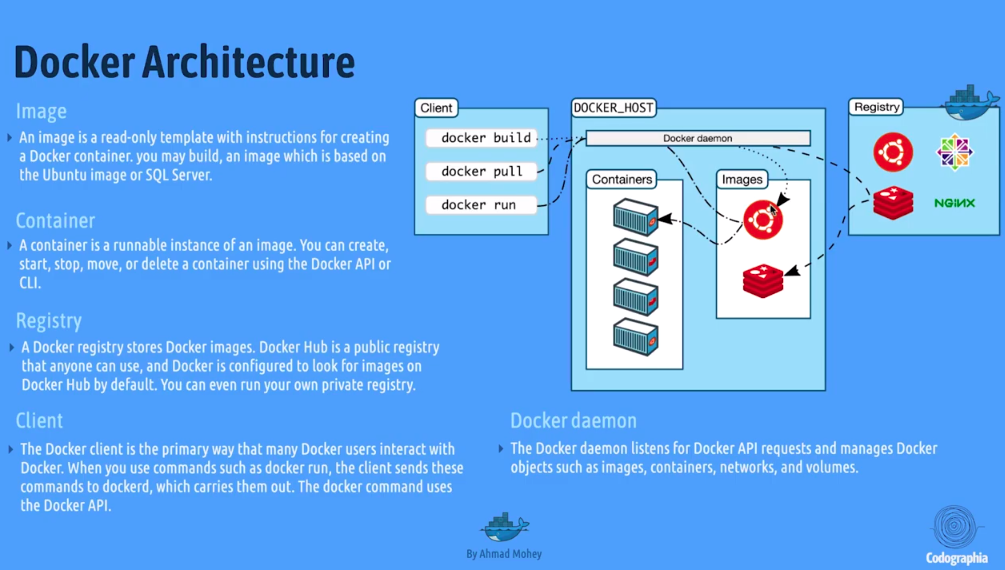
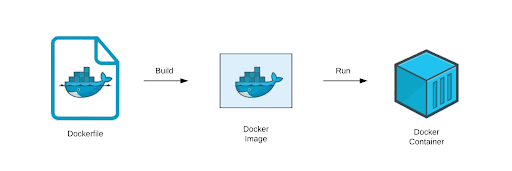
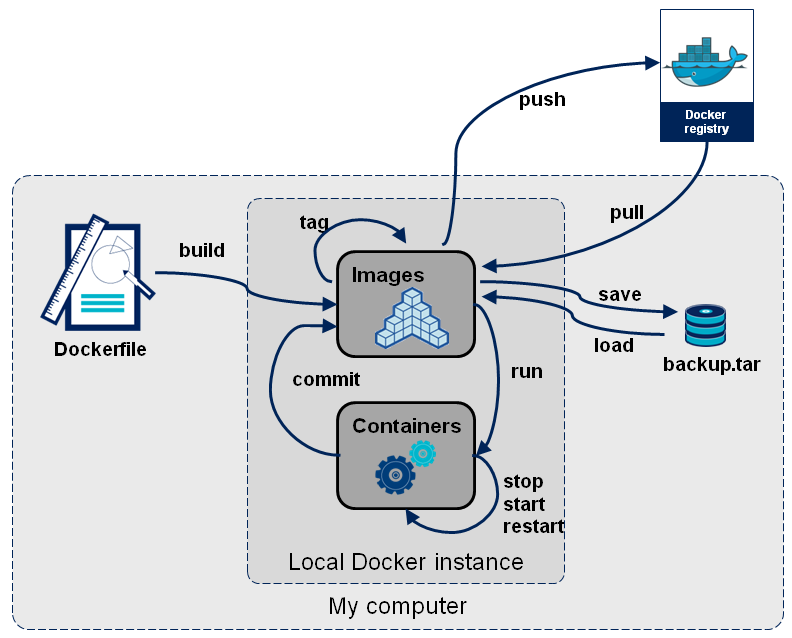
Image. A read-only package with the code, runtime, libraries and config an app needs. It is the template a container is created from.
Container. A running instance of an image, an actual process.
Dockerfile. The recipe for building an image.
Registry. Where images are stored and shared. Source code goes to GitHub, images go to a registry, and Docker Hub is the public one.
Client and daemon. The client is the docker CLI. The daemon runs in the background, listens for API calls from the client and manages images, containers, networks and volumes.
Using it
Install from the docs and read the post-install steps. The main one is adding yourself to the docker group so you can skip sudo. That group is root-equivalent, since anyone in it can mount the host filesystem into a container, so only add users you trust.
First container
Find an image on Docker Hub, say Ubuntu. The Tags tab lists versions and sizes. Without a tag you get latest.
docker pull ubuntu

# run pulls the image first if it is not local
docker run ubuntu
That second command prints nothing and exits at once. The container ran, but the default command for Ubuntu is bash, and with no terminal attached bash quits. To see it:
docker ps -a        # lists all containers, including stopped ones
docker images       # lists local images
To get a shell inside:
docker run -it ubuntu bash
-i keeps stdin open and -t allocates a TTY. Type exit to leave. Containers and images can be referred to by name or id, and the first few characters of an id are enough.
To run a command in a container that is already up:
docker exec <container> <command>
Cleaning up:
docker rm 4f2f                     # one container
docker rmi 5cv5                    # one image
docker rm $(docker ps -aq)         # all stopped containers
docker rmi $(docker images -q)     # all images
Add -f to force. For a bulk cleanup, docker system prune removes stopped containers, unused networks and dangling images. Add -a to remove all unused images and --volumes to remove unused volumes too.
Dockerfile
Put a file called Dockerfile in the project and build from that directory:
docker build .
docker build -t first_container .     # -t here is the image tag
A small Python example:
FROM python:3.12-slim
WORKDIR /app
COPY requirements.txt .
RUN pip install -r requirements.txt
COPY . .
EXPOSE 8000
CMD ["python", "app.py"]
FROM picks the base image. WORKDIR sets the directory inside the container. COPY brings files from the build context in, and RUN executes a command at build time. CMD is what the container runs by default when it starts.
Only RUN, COPY and ADD create filesystem layers. The other lines just add metadata. Copying requirements.txt before the rest of the code means the pip layer stays cached until the dependencies change.
ADD is COPY that can also fetch URLs and unpack local tarballs. I stick to COPY.
EXPOSE 8000 only documents the port. To reach it from the host you still need -p:
docker run -d -p 8080:8000 first_container
Volumes
A container’s filesystem disappears with it. There are two ways to keep data or share it with the host.
A bind mount maps a host path into the container, like ./:/app. Edits on either side show up on the other, which is handy for development.
A named volume is created and managed by Docker (under /var/lib/docker/volumes/). It is better for data such as a database, since it does not depend on the host’s directory layout.
Pushing to Docker Hub
Name the image <hub-user>/<repo>, either at build time or by re-tagging, then push:
docker build -t <hub-user>/<repo>:<tag> .
docker tag local-image:tag <hub-user>/<repo>:<tag>
docker push <hub-user>/<repo>:<tag>
Compose
Each container should do one thing. When an app needs several, Compose describes the whole stack in one file at the root of the repo. The old version: key is obsolete and can be left out.
services:
  app:
    build: .
    command: python app.py
    ports:
      - "3000:3000"            # host:container
    working_dir: /app
    volumes:
      - ./:/app                # bind mount of the project dir
    environment:
      DB_HOST: db              # service name
      DB_PORT: "3306"          # container port, not the host one
    depends_on:
      - db
  db:
    image: mysql:8
    environment:
      MYSQL_ROOT_PASSWORD: example
    volumes:
      - dbdata:/var/lib/mysql  # named volume

volumes:
  dbdata:
    name: myapp_dbdata
docker compose up                # builds if needed, then starts everything
docker compose up app            # only this service (and what it depends on)
docker compose down
Inside the Compose network each service reaches the others by service name, as DB_HOST: db does above. Use the container port there. A ports: entry on db is only needed if you want to reach it from the host.
Flags I use most
-drun in the background-p 8080:80publish host port 8080 to container port 80-ikeep stdin open-tallocate a TTY
Tricks
To unpack an image into a root filesystem, create a container from it, export it and extract:
docker export <container> -o cont.tar
tar -xf cont.tar
Export flattens all layers into one tarball and drops image metadata like CMD and EXPOSE.